01
The key points, right beside the page
The summary opens in Chrome's side panel, so the article is never covered. Read the TL;DR, skim the takeaways, and keep your place.
✦ AI summaries for Chrome
Find out in seconds whether a long article is worth your time. One click gives you the key points beside the page, with no account needed. Every point links to the paragraph it came from, so you can check it instead of taking it on faith.
It's free, and you don't need an account. Pin it to your toolbar so it's one click away.
Or press Alt + Shift + S. WebSum reads the page only when you ask.
The key points arrive in seconds. Click any point to jump to the paragraph it came from.
01
The summary opens in Chrome's side panel, so the article is never covered. Read the TL;DR, skim the takeaways, and keep your place.
02
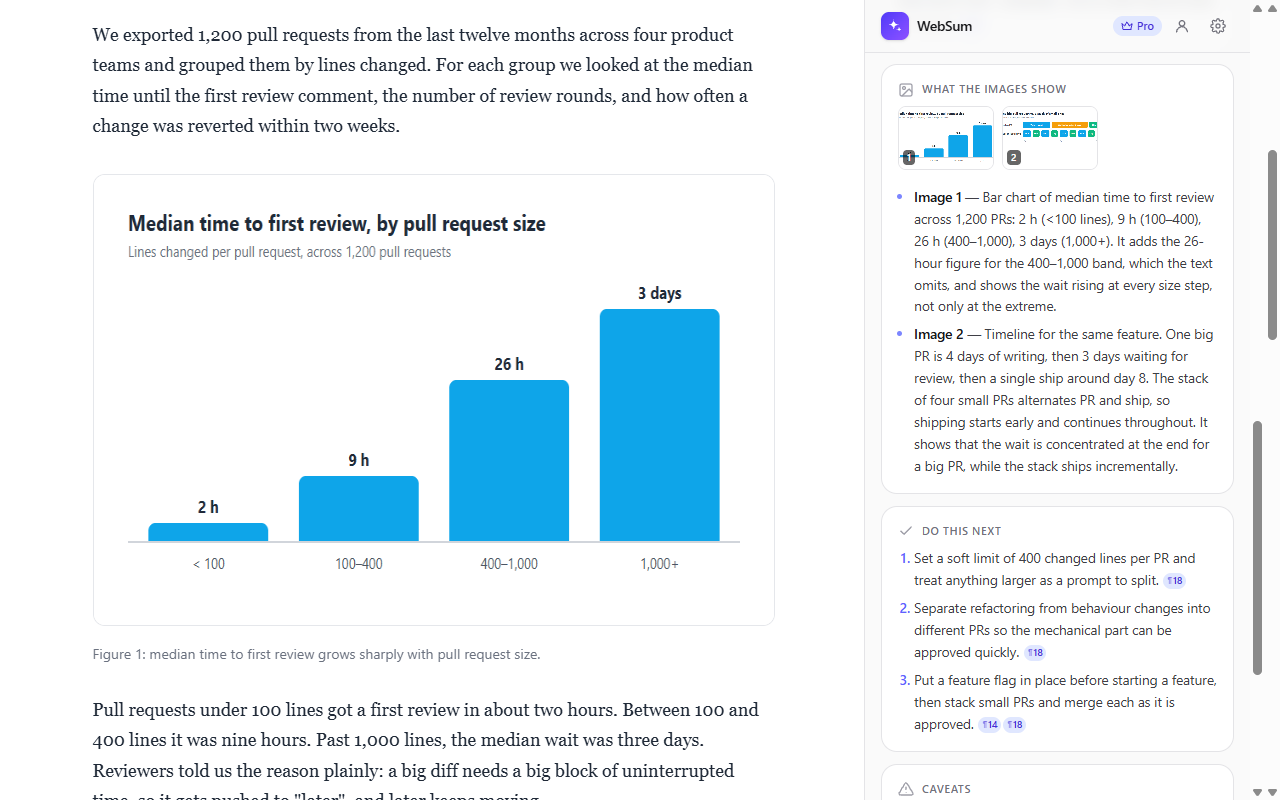
Charts, diagrams and screenshots are explained, not skipped. WebSum pulls out the numbers and points the text leaves out.
03
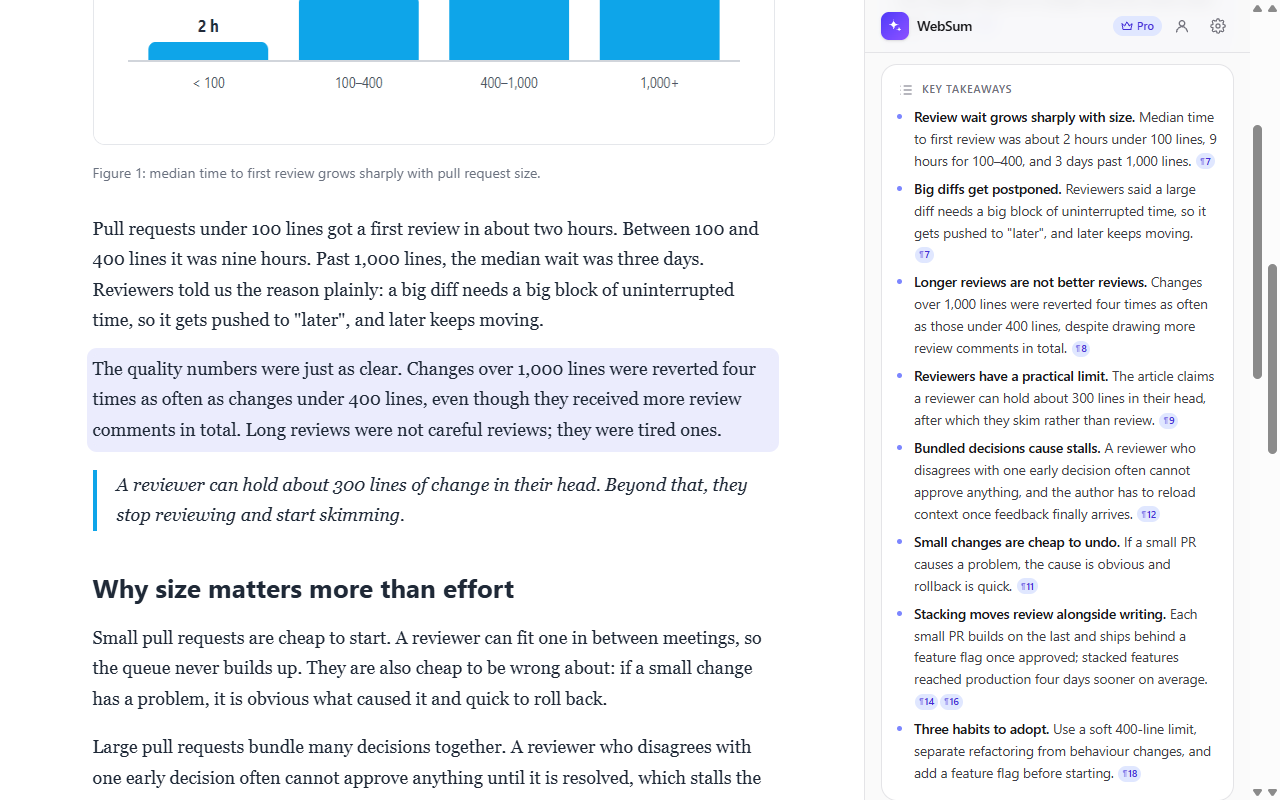
Each point links to the paragraph it came from. Click it and WebSum scrolls the article there and highlights the source.
04
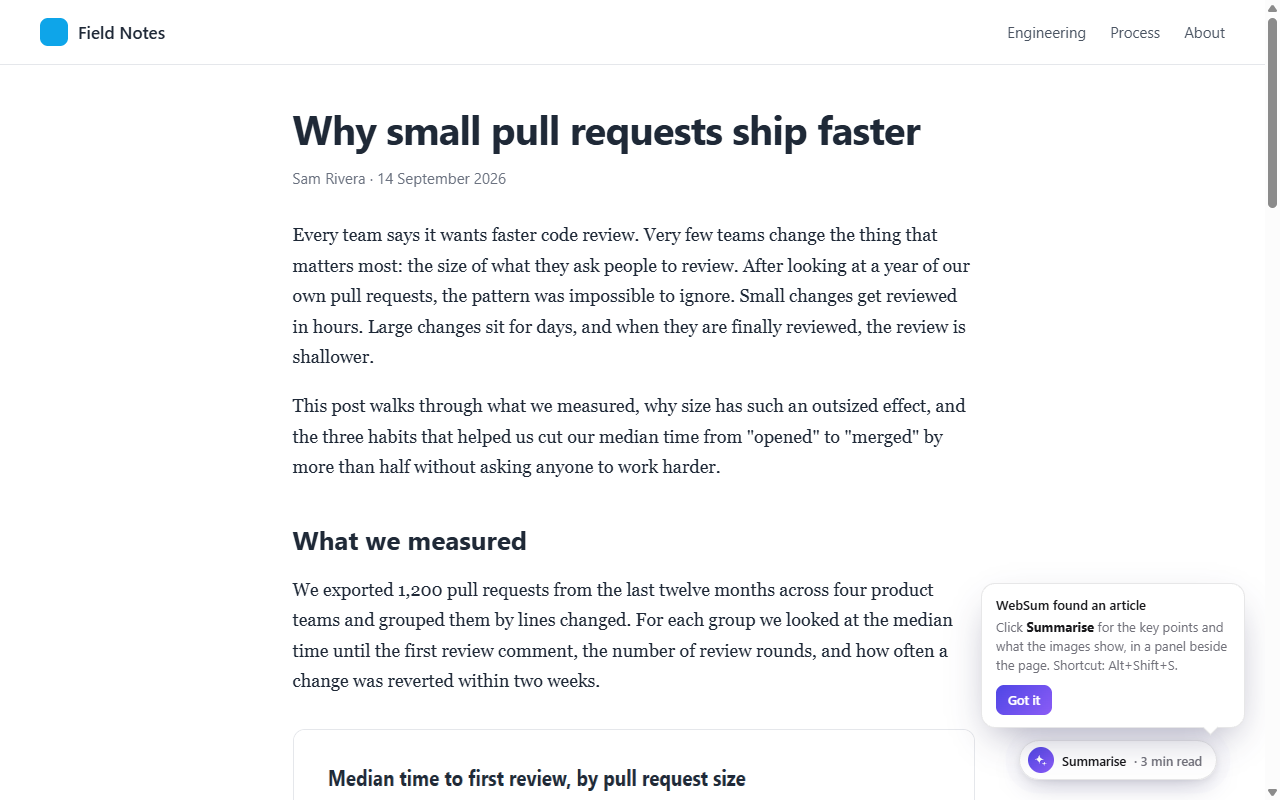
Allow WebSum on all sites, or just the ones you pick, and a small Summarise button appears on blog posts and news articles. It never shows up on apps, feeds or search results.
05
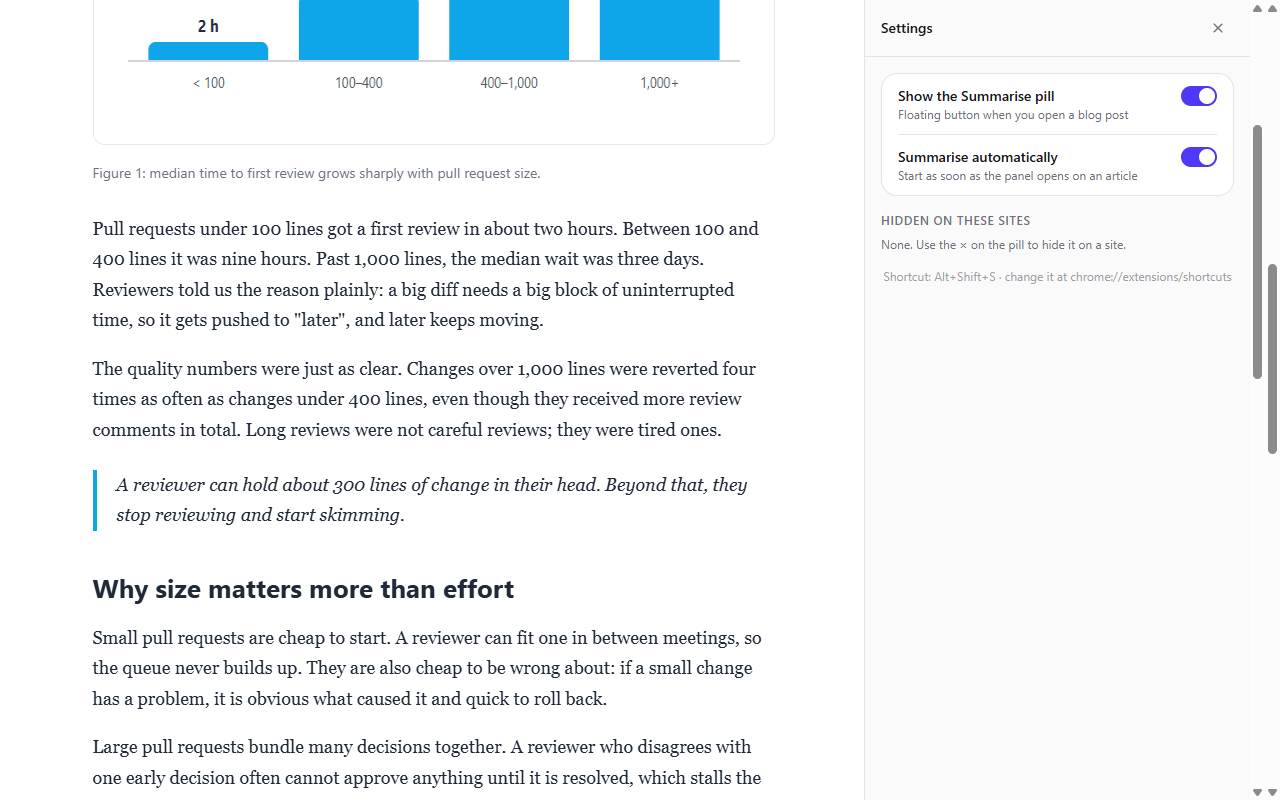
Hide the button on any site, or turn it off and summarise from the toolbar. Change which sites WebSum can read at any time.
An extension that reads pages should be easy to trust. Here is exactly what WebSum does.
Start free. Upgrade when WebSum becomes part of how you read.
US$0
For heavy readers
US$14 / month
or US$120 a year, 29% off
A monthly fair-use allowance applies. Cancel any time.
Start free, upgrade laterYes. You get 5 summaries a day without an account, or 10 a day when you sign in with Google or your email. WebSum Pro is US$14 a month or US$120 a year for 20 summaries a day on a stronger model, follow-up questions and a longer History.
Blog posts, news articles, documentation and essays: anything you can read as an article. Click the WebSum icon on any of them. If you've allowed the Summarise button, it only appears when WebSum is confident a page is an article.
You choose. Out of the box, WebSum reads a page only when you click its icon or press Alt + Shift + S. If you'd like the Summarise button to appear by itself, allow WebSum on all sites or only the ones you pick. You can change this any time.
Only the article you ask it to summarise: its text, title, address and images. Nothing is sent while you just browse. Details are in the privacy policy.
No. WebSum refuses to read private apps such as email, documents, chats, AI assistants and banking, even if you ask it to.
Yes. WebSum writes the summary in the article's own language, so a Swedish or German article gets a Swedish or German summary.
WebSum summarises what your browser can show. If you only see a preview, it tells you so instead of pretending to summarise the whole article.
Not yet. WebSum reads web pages in Chrome: blog posts, news articles, documentation and essays. It doesn't read PDFs or videos.
Yes, on Pro. Under a summary, ask anything about the article. Answers come only from the article and link to the paragraphs they used. If the article doesn't cover something, WebSum says so instead of guessing.
Yes. Open History to search and reopen them. They stay in your browser, and you can remove any of them. Free keeps your last 25; Pro keeps up to 500, with your questions.
Founding members, who subscribed at the launch price of US$10 a month or US$90 a year, keep that price for as long as their subscription stays active, even if Pro's price rises later. If you cancel and subscribe again, the price at that time applies.
From "Manage billing" in WebSum's account screen, any time. You keep Pro until the end of the period you've paid for.
The support page covers setup, billing and common problems. You can also email six9dev@gmail.com; we aim to reply within two business days.

Free to start. No account needed. Watch the demo